Ziniao Box User Manual
1. Brief Introduction
Ziniao Box provides secure internet environment sharing service for cross-border stores running in Ziniao Browser, and supports 4G/3G/2G high-speed network service. Please follow the device prompts to complete connection. Before using Ziniao Box, the following requirements must be met:
• A “local” or “overseas local” network that meets the store environment requirements, or a physical SIM card with available data;
• A Ziniao Browser account is available;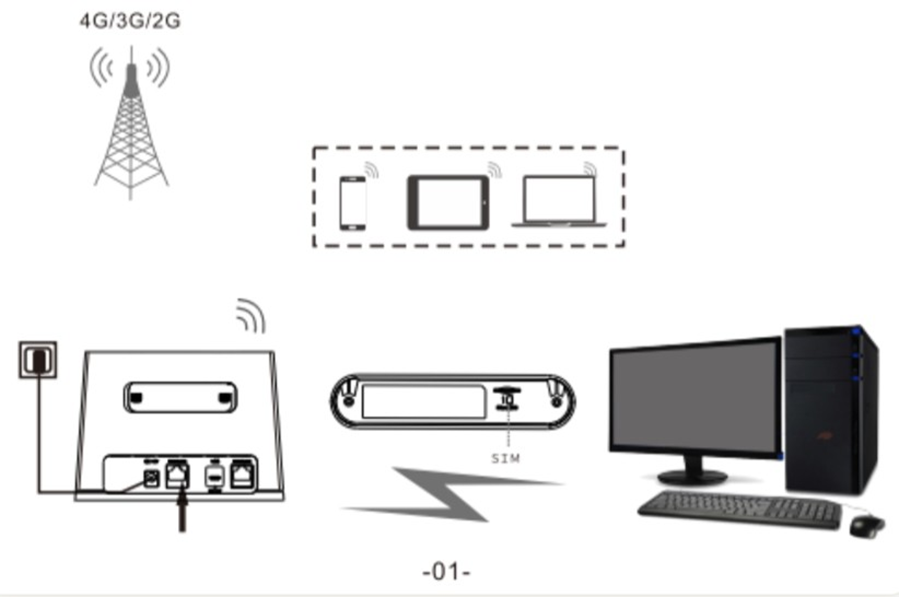
2. Product Introduction
Appearance (LED Version)
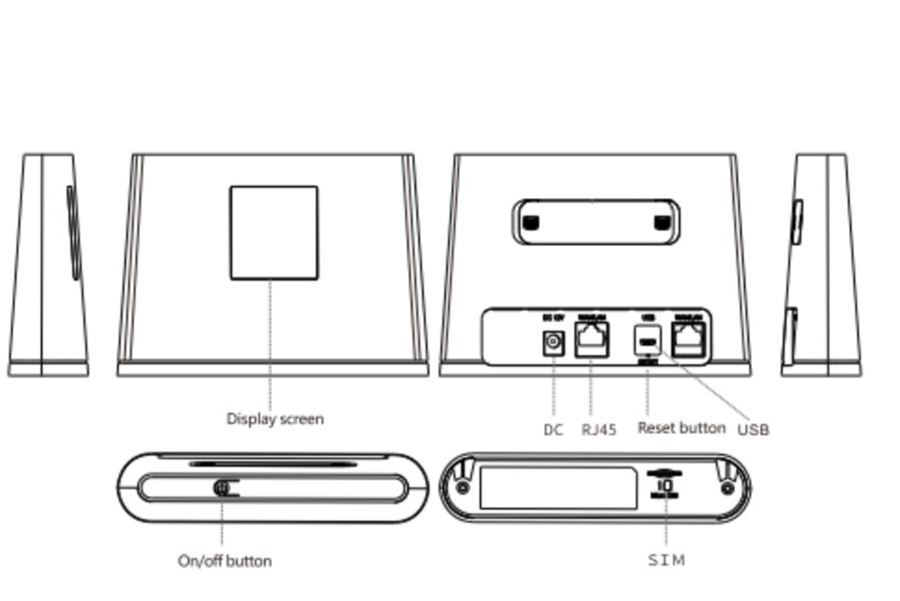
| Item | Description |
|---|---|
| Power Switch | For device restart. |
| DC Power Port | 12V-1A. The device powers on automatically after power is connected. |
| USB Port | Used for device upgrades; it can also be powered by a USB adapter or power bank in emergencies. |
| RJ45 Network Port | Connects to an Ethernet cable and supports WAN/LAN auto-adaptation. |
| SIM Card Slot | Standard SIM card slot (2FF). |
| Factory Reset | Press and hold for 5 seconds to restore factory settings. |
LED Indicators
Device indicator status description
POWER
| Status | Description |
|---|---|
| Blue | Power normal |
WiFi
| WiFi LED Color | WiFi Not Started | WiFi Running | User Connected |
|---|---|---|---|
| Blue | WiFi LED off | Blue blinks every 2s | Blue solid |
WAN (Network Signal)
| Signal LED Color | Network Type | 2s Blink | Solid |
|---|---|---|---|
| Green | 4G LTE | Network registered, not connected | Network registered, connected |
| Blue | HSPA+ | Network registered, not connected | Network registered, connected |
| Purple | EVDO | Network registered, not connected | Network registered, connected |
| Yellow | GSM/EDGE | Network registered, not connected | Network registered, connected |
| Red | No Service | Searching network | Not detected |
WAN/LAN
| Status | No Ethernet Cable | User Connected |
|---|---|---|
| Green | Off | On (Blinking) |
3. Appearance (LCD Display)
The LCD screen can display signal, broadband, WiFi, power, and connection status icons.
| Icon / Item | Meaning |
|---|---|
| 4G Signal Icon | Connected to the LTE 4G network. |
| 3G Signal Icon | Connected to the 3G network. |
| 2G Signal Icon | Connected to the 2G network. |
| Network Connection Icon | Indicates that the network is connected. |
| Ethernet Icon | Shows no Ethernet, LAN mode, WAN mode (Dynamic IP), or WAN modem (PPPoE). |
| WiFi Icon | Displays WiFi connection and connected user status. |
| Power Icon | Indicates that power is connected. |
4. Configuration List
| No. | Accessory | Quantity |
|---|---|---|
| 1 | 4G CPE | 1 |
| 2 | AC/DC Power Adapter | 1 |
| 3 | Ethernet Cable | 1 |
| 4 | User Manual | 1 |
Warnings and Precautions
• Do not start the device in places where use is prohibited or where it may cause interference or damage.
• Turn off the device near high-precision instruments; otherwise it may affect device performance, such as implanted medical equipment.
• Do not place the device in an environment where an explosion may occur.
• Keep the device dry and prevent liquids from entering the device.
• Do not drop, hit, or impact the device; otherwise the PCBA may be damaged and performance may be affected.
• Do not operate the device with wet hands to avoid electric shock.
• It is normal for the device to become warm after long periods in weak-signal or high-temperature environments. This does not affect normal use or service life, but avoid prolonged direct skin contact.
• Do not store the device in high-temperature environments; otherwise its service life may be shortened.
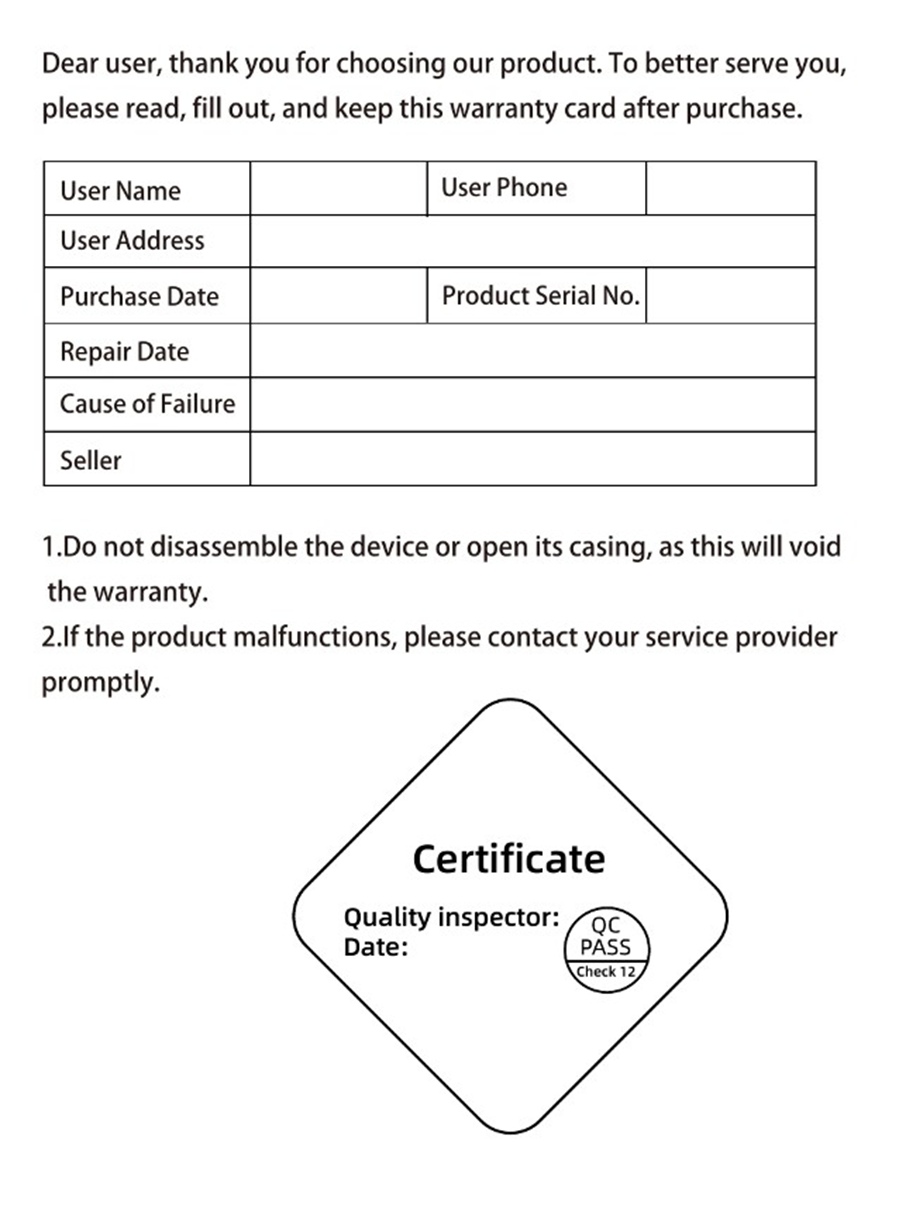
5. Warranty Card
 关键字:紫鸟盒子,紫鸟浏览器